DigitalOcean Spaces private downloads with expiring links
Build DigitalOcean Spaces private downloads in Next.js. Check file ownership, issue expiring links, and test denied access with a complete companion project.
Jump to steps ↓Companion GitHub repositoryCompanion Next.js project and READMETylorMayfield/spaces-private-downloadsView on GitHubThe private-download mistake to avoid
A customer signs in, clicks Download, and receives their report. DigitalOcean Spaces private downloads can handle that without sending the whole file through your Next.js server. Keep the object private, check the customer's right to that particular file, then issue a presigned URL that expires shortly afterwards.
A presigned URL is a normal HTTPS address with a signature and an expiration in its query string. Spaces accepts that signature as permission to perform a specific operation. It is useful for invoices, customer exports, and member downloads where a short sharing window is acceptable.
The mistake is putting a public object URL behind a login button. The button disappears when someone signs out, but the object remains public. Anyone who copies its address can still fetch it. Privacy must hold at the storage layer as well as in the page.
This guide uses a small companion project with two demo accounts and two files. It makes the access checks visible without asking you to install a database first. The example is a local rehearsal. Its demo authentication is not a production account system.
Choose the download behavior your users need
Authentication answers who is making a request. Authorization answers whether that person may receive this file. Logging in covers the first question. Your application still needs to answer the second before it signs anything.
Use a public URL for files intended for everyone. Use a short-lived presigned URL when an authorized person may receive a temporary, shareable link. Use an authenticated download proxy when you must recheck access on each request before your server sends the file.
The proxy costs more application bandwidth and operational work. It also cannot take back a file somebody has already saved. Choose it for a concrete access requirement, not because the word private sounds stricter.
Scroll horizontally to see all columns.
| Approach | Good fit | Limitation |
|---|---|---|
| Public object URL | Public images, open manuals, public downloads | Anyone with the address can fetch the object. |
| Private object with presigned URL | Account exports and downloads with a short sharing window | The link is reusable and shareable until it expires. |
| Authenticated application proxy | Access must be checked before each download request | Your application carries the file traffic; saved copies remain outside its control. |
Check DigitalOcean Spaces pricing before setup
As checked on September 8, 2026, Spaces Standard starts at US$5 per month and includes 250 GiB of storage and 1,024 GiB of outbound transfer. Extra Standard storage costs US$0.02 per GiB per month and extra outbound transfer costs US$0.01 per GiB. Read the current billing page before you create the bucket. These account-level allowances are shared across buckets; each bucket does not receive a fresh allowance.
Your Next.js hosting is separate. Running the companion on your computer avoids a new app-hosting bill for this rehearsal, but creating Spaces resources can still incur charges. Set a budget around expected downloads and retained files, not just the number of accounts.
For a rough transfer estimate, multiply file size by completed downloads. Repeated downloads and retries add traffic. A short expiration does not make a link single use or limit the number of times it can be requested while valid.
Spaces is a reasonable fit if you want S3-compatible object storage and already use DigitalOcean. Its advantage here is direct delivery with a small amount of application code. Its disadvantages are the monthly base cost for a tiny project and the fact that authorization, abuse controls, and account support remain your responsibility.
Create a private Spaces bucket and a limited key
An object is one stored file. Its key is its full name inside the bucket, including any folder-like prefix. A key such as reports/iris.txt is an identifier, not proof that Iris owns it. Your application decides ownership independently.
Use a separate bucket and harmless sample text for this exercise. Turn off public listing, but do not treat that setting as proof that the objects are private. Listing controls discovery; object permissions control downloads. Check each sample object's permissions too.
Read permission covers reads and listing throughout the selected bucket. It does not restrict the key to Iris's file. The application ownership check provides that narrower boundary. Limited keys cannot be combined with a bucket policy in this setup; use the dedicated bucket and review any existing policy before adopting it.
- Create a Spaces bucket with a unique name without dots in your chosen region and leave the CDN disabled for this exercise. Record the bucket name and region, such as nyc3.
- Upload two harmless text files as private/iris/report.txt and private/milo/report.txt. Set each object to private and its Cache-Control metadata to private, no-store. Keep customer data out of this first test.
- Create a dedicated Spaces access key with Read permission limited to this bucket. The application only needs to read objects. Use your administrator account separately for uploads.
- Save the key ID and secret in the local environment file described by the companion. Never use a NEXT_PUBLIC_ variable for either credential and never commit this file.
- Open an unsigned origin URL for a sample object in a fresh browser session. It should return an access error. If it downloads, fix object access before continuing.
Run the companion before adapting your own app
Start with the complete project linked below. It keeps setup, environment variable names, and executable tests together, so you do not have to assemble a working app from disconnected snippets. Follow its README in order and use the Node.js version it requires.
The companion uses HTTP Basic authentication with two accounts, iris and milo. You set their passwords in server-only environment variables. A browser login prompt is sufficient to demonstrate identity locally, but it does not provide registration, password recovery, secure session management, or the rest of a production login system.
Keep this rehearsal on localhost. If you adapt it for a hosted application, replace demo authentication with your existing server-verified session and use HTTPS. Basic authentication encodes credentials; it does not encrypt them.
- Clone the companion repository and install its locked dependencies using the README instructions.
- Copy .env.example to .env.local. Set SPACES_REGION, SPACES_BUCKET, SPACES_KEY, SPACES_SECRET, DEMO_IRIS_PASSWORD, and DEMO_MILO_PASSWORD as explained in the README. Each demo password needs at least 24 characters. Check the sample object keys against your uploads.
- Run the local tests first. They exercise application decisions without proving how your live Spaces bucket is configured.
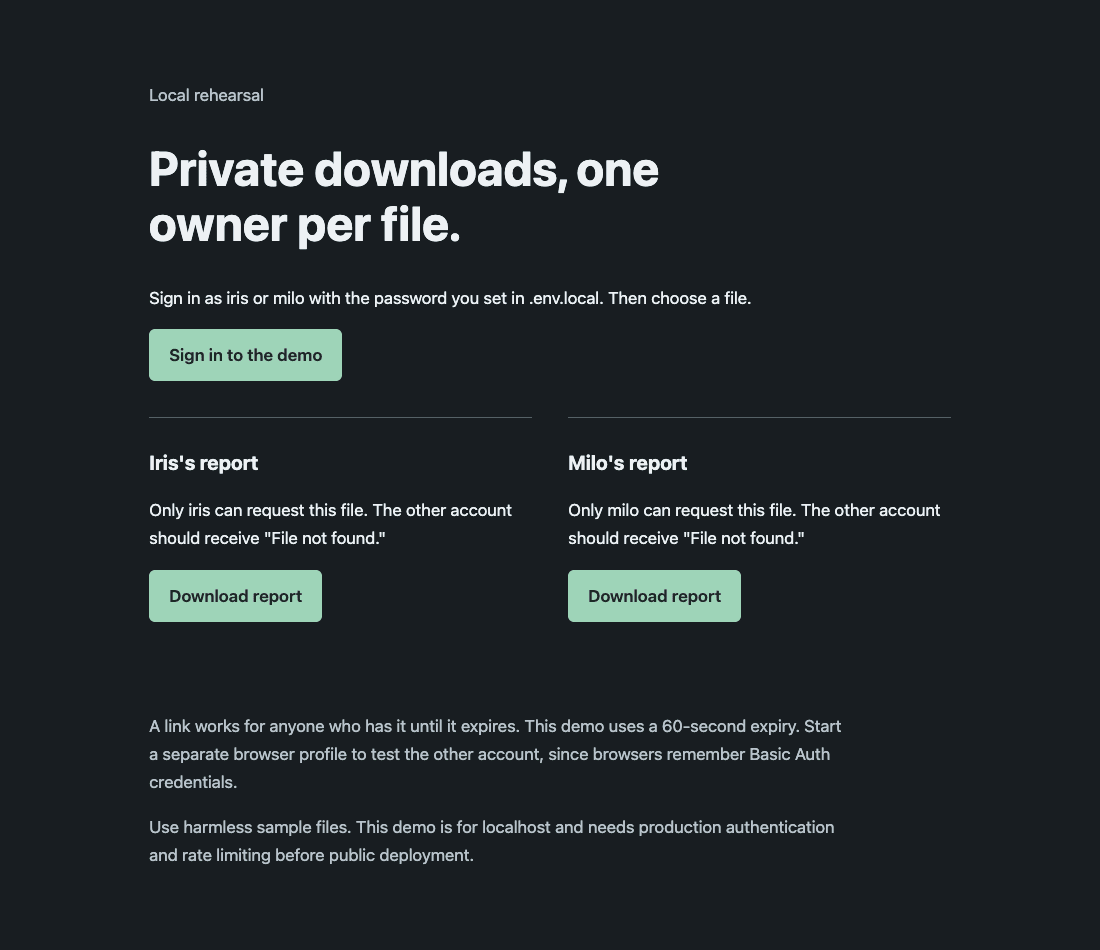
- Start the development server and open http://127.0.0.1:3011. Click Sign in to the demo, enter iris and its password, then follow Return to downloads. Request iris-report and check that the attachment contains your harmless Iris sample.
- Use separate browser profiles or the companion test commands to switch accounts. Browsers can retain Basic authentication credentials; a misleading account switch can invalidate your test.
How the Next.js route signs a Spaces presigned URL
The browser requests an application file ID. The server authenticates the account, looks up that ID in its private catalog, and compares the account with the file owner. Only a successful check reaches the signer. A file belonging to another account returns the same not-found result as an unknown file.
The server controls the bucket, object key, download filename, and expiration. Do not replace this catalog lookup with an endpoint that signs whatever key the browser submits. A valid login would then become a way to request somebody else's file.
The companion uses the AWS SDK for JavaScript and signs a GetObject request for 60 seconds. GetObject means download this object. Creating the URL does not fetch the file or prove it exists, so the separate live download check still matters.
Sign against the regional Spaces origin using the SDK configuration in the repository. Do not swap the hostname for your public CDN domain afterwards. The hostname participates in signing, and DigitalOcean documents that presigned requests do not benefit from its CDN cache.
The API returns the URL in a response marked no-store. The download request also asks for private, no-store cache behavior and an attachment disposition. Those headers reduce unwanted caching and ask the browser to save a file. They do not prevent the recipient from keeping or sharing it.
The download button requests a fresh link when clicked and navigates the browser to it. Top-level navigation to a download does not require a Spaces CORS rule. If you change the design to fetch the file into JavaScript across origins, you need the corresponding CORS configuration. CORS is a browser rule, not a substitute for file authorization.
Test the requests that should fail
One successful download proves very little about privacy. The useful check is whether the wrong request fails without receiving either a signed URL or file contents. Run the companion's local tests, then repeat the storage-dependent checks against your own sample bucket.
These are acceptance checks for your deployment. This article does not claim a live cloud test against your credentials. Keep account passwords, complete signed URLs, and file contents out of screenshots or reports you share.
- Request the download API without credentials. Expect HTTP 401 and no signed URL.
- Sign in as iris and request milo-report. Expect HTTP 404 and no signed URL. Also request an unknown ID and expect the same status.
- As iris, request iris-report. Expect a successful API response followed by a successful file download. Confirm the file content, not just the response status. Inspect the file response for Cache-Control: private, no-store and an attachment Content-Disposition.
- Use that same signed URL again before expiration. It may work again, even from a browser that is not signed in. This is the expected bearer-link behavior.
- Retain the exact URL, wait past its 60-second lifetime with a little margin, then make a fresh GET request to it. Expect an access error. Do not click Download again, because that would create a new URL.
- Fetch the unsigned origin URL directly. Expect denial. If you previously made the object public through a CDN, check that route too and address any cached public copy before considering the file private.
Fix common failures without making the bucket public
An API 401 usually points to missing or incorrect demo credentials. A 404 can mean an unknown file ID or a file assigned to another account. This ambiguity is deliberate. Check the server-side catalog and the authenticated account before changing storage permissions.
If the API returns a URL but Spaces denies the download, check the bucket name, exact object key, region endpoint, key permission, and your computer's clock. A correctly signed request for a missing object can still fail. Do not assume every 403 means the object exists or that you need broader permissions.
A signature error can also come from editing the URL, signing for one method and testing another, or using the wrong host. Test a GetObject URL with GET. A command that sends HEAD is a different request and can produce a misleading failure.
An expired link needs a new authorization check and a new URL. Let the reader return to the page and click Download again. Avoid exposing storage error details in a public error message; provide a short retry instruction and keep diagnostic codes in protected logs.
Replace the demo boundaries before production
Connect the route to your real server-verified login session. Load file ownership or purchase entitlement from your database on each signing request. If a subscription has expired, deny the next request rather than relying on a file ID hidden in the page.
Add rate limiting around link creation and monitor unusual download behavior. Keep signed query strings out of analytics, error tracking, and reverse-proxy logs. Treat a full signed URL like a temporary secret, because possession is enough to use it.
Decide whether a 60-second sharing window fits your product. The app checks access when it issues the URL, not every time someone uses it. Removing an account's entitlement stops new URLs after you implement that check; an existing URL can remain usable until its expiration.
Expiry does not erase a saved file. It also should not be described as a guaranteed cutoff for an already-running transfer. If you need stronger controls on new requests, consider the authenticated proxy described earlier and define what happens to active downloads.
I would ship this pattern for ordinary account exports after the failed-access tests pass. For files where even a brief forwarded link would be unacceptable, I would choose a delivery design that checks the application session on each request. That requirement is worth deciding before buying storage.
Your next useful checkpoint
Finish with one private sample file, one authorized download, and evidence that the unauthorized requests fail. Then add your real login and ownership query before introducing customer files. That small sequence catches the dangerous mistakes while the data is still disposable.
Keep the companion README beside your first implementation for the exact commands and repeatable checks. If the same app also serves public assets, the public-file guide below covers that separate delivery path.
Are DigitalOcean Spaces presigned URLs single use?
No. A presigned URL can be reused or forwarded while valid. Keep the expiration short and authorize each request to create a new link. A one-time token in your app cannot make an already-issued Spaces URL single use.
Can I revoke a download by signing the user out?
Signing out does not invalidate an existing presigned URL. Spaces checks the signed request rather than your application session. Stop issuing new links when access ends, choose an appropriate expiration, and never promise to revoke a file the recipient has already saved.
Do private Spaces downloads need the CDN or CORS?
This guide uses the regional origin directly. DigitalOcean documents that presigned requests are not cached by its CDN. Navigating the browser to an attachment does not need a CORS rule; reading the file through a cross-origin JavaScript fetch is a different design.
Does a signed URL prove that a file exists?
No. The SDK can create a presigned request without downloading or checking the object. Test the resulting URL against your bucket and verify the file contents. Check the catalog key and object permissions if signing succeeds but the actual download fails.
Check your result
- Expected result
- The owner downloads the correct bytes. Missing credentials, the wrong user, an expired link, and an unsigned origin request all fail.
- Stop if
- Stop if either file is public, another user can obtain its link, the expired URL still works in a fresh GET, or a secret reaches browser code or logs.
- Next step
- Replace demo authentication with your application session and entitlement checks before deployment. Repeat the acceptance tests over HTTPS.