Serve public files with a custom CDN domain
Serve public files through a custom CDN domain on Spaces. Check HTTPS, file permissions, cache updates, and rollback before moving real website traffic over.
Jump to steps ↓Start with a file you can replace
You can serve public files through a custom CDN domain without moving your website. Keep the app where it runs today, put a few approved images in a Spaces Standard bucket, and make a subdomain such as assets.example.com the address readers use. This guide takes that small path first.
The acceptance test matters more than the first successful upload. You will load two different images, switch a preview between them, and investigate an overwritten file separately. That gives you a repeatable release procedure before a stale brochure or missing product image becomes a customer problem.
This is for public screenshots, illustrations, and downloads that anyone may retain. Keep invoices, original customer uploads, backups, and paid downloads out of this bucket. Public access is a publishing decision. An obscure filename is not access control.
The setup below follows the provider documentation checked on 6 September 2026. It is a guided test procedure, not a claim that I provisioned your domain or measured a speed improvement. Record your own results as you work.
Choose the delivery path before buying anything
A bucket stores objects, which are files plus metadata. The origin is the stored copy. A content delivery network, or CDN, keeps copies on edge servers. Your browser may retain another copy after a download. A custom hostname changes the address; it does not collapse these copies into one.
My recommendation is Spaces when you already want separate object storage for ordinary public files. The integrated CDN keeps this setup small. The tradeoff is that you now own object permissions, DNS, and cache behavior alongside your website deployment. That operational work still exists at low traffic.
If your current website host already serves a handful of static images successfully, leave them there until you have a reason to move. An extra account is not an optimization by itself. If your application depends on AWS-specific storage features, evaluate its delivery architecture before migrating just to reproduce this tutorial.
Scroll horizontally to see all columns.
| Approach | Useful when | Cost or drawback |
|---|---|---|
| Existing website host | A small asset set belongs to each site release | Check your current plan; assets may remain tied to app deployments. |
| Spaces Standard with CDN | You want public object storage separate from the app | US$5/month base, plus applicable overages; you manage DNS and permissions. |
| S3 with a separately configured CDN | Your storage already depends on AWS services | Price storage and the actual CDN together; more configuration to review. |
Budget for downloads as well as storage
Spaces Standard starts at US$5 per month with 250 GiB of storage and 1,024 GiB of outbound transfer. The CDN has no separate add-on charge. Extra storage is US$0.02 per GiB-month and extra outbound transfer is US$0.01 per GiB. These account-level allowances are shared, not a fresh allowance for each bucket.
For an illustrative month with 10 GiB stored and 100 GiB delivered, the workload stays within the base allowance if other buckets have not consumed it. Taxes, your domain, application hosting, and other services are outside that example. A popular download can change the transfer line while storage hardly moves.
Write down your expected monthly downloads before creating the bucket. Use the size of the actual published files, then multiply by expected downloads. Leave room for retries and repeat visits. After launch, compare that estimate with the account usage report instead of assuming every visit comes from a browser cache.
Create a separate public-assets bucket
Use a new Standard Storage bucket for this exercise. Cold Storage is not the CDN path. A dedicated bucket gives the test a clear boundary and avoids selecting a backup directory while changing permissions. Choose the region deliberately, especially if an application will upload files from a particular location.
Prepare two small PNGs locally. Put a large A in the first and a large B in the second, then save them as cdn-check-a.png and cdn-check-b.png. These are your own disposable fixtures. They make an incorrect response obvious without checking a subtle color or relying on a filename alone.
- In Spaces Object Storage, create a Standard Storage bucket with a unique name and record its region. Review the displayed price before creating it.
- Keep file listing restricted. Upload only cdn-check-a.png and cdn-check-b.png through the Files tab.
- For each test object, open its menu, choose Manage Permissions, select Public, and save with Update. Do not select unrelated objects.
- Copy the public object URL and open it in a private browser window. A must show A and B must show B without account login or signed query parameters.
Check the object, not the bucket listing
A restricted listing and a public object can coexist. The listing controls whether someone can enumerate filenames. Object permissions control whether someone can read a particular file. Keep the listing restricted even though your two chosen objects are public.
If the bucket root refuses access but the exact image URL opens, you have not necessarily found an error. Test the full object path, including capitalization and folders. Conversely, a file opening inside your signed-in control panel does not establish public access. Use the private window test.
Before proceeding, put the two exact origin URLs in a short release note. Beside each, record the expected letter and the observed result. This note will help separate a failed upload from a DNS or CDN problem later. Do not add credentials or temporary signed links to the note.
Connect the CDN before the custom hostname
Open the bucket Settings, edit the CDN section, enable the CDN, and save. Keep the default one-hour edge cache TTL for this initial test. Copy the CDN endpoint shown by the panel and append the same object path you already tested at the origin.
Open both CDN object URLs in the private window. Compare the visible letters with the origin results. If either fails, stop here. A custom domain adds another dependency and will not fix a wrong object path or missing public permission.
Now add the custom subdomain in the CDN settings. This guide uses the managed Let's Encrypt option for a domain whose authoritative DNS is already on DigitalOcean. Select an unused assets subdomain and let the panel configure the records and certificate. Do not reuse a hostname that already serves something else.
If DNS is hosted elsewhere, pause this path and use the linked bring-your-own-certificate instructions. Do not change your domain nameservers merely to finish the tutorial. A nameserver move affects every record, including email, and deserves its own migration plan.
Verify HTTPS before editing the website
Once provisioning completes, open the custom HTTPS address for each test image. Replace the example hostname with the one you configured; retain the exact object path. A successful result has the correct letter, no certificate warning, and no redirect to a login screen.
Open your browser developer tools and select Network before reloading. Choose the image request and inspect its Request URL, status, Content-Type, and response. For a fresh fetch, expect a successful response and image/png. A cached or revalidated request can look different, so note whether developer tools report a local cache.
A certificate error belongs to the hostname or certificate investigation. If the default CDN URL works and the custom URL does not, check DNS resolution and provisioning first. If the origin itself fails, return to the upload and permissions step. This order avoids changing three settings to fix one failure.
Do not bypass a browser certificate warning and count the test as passed. Also do not declare the CDN faster from one reload. A warm browser cache can make almost any endpoint look instant. Correct delivery is the first acceptance criterion; performance requires a separate, repeatable measurement.
Use new filenames for public file updates
Change one image URL in a local or staging page to the custom-domain URL for cdn-check-a.png. Keep the original page value in version control or a saved revision. Open the preview in a fresh browser session and confirm that the actual image request goes to your new hostname.
Next change only the path to cdn-check-b.png and publish the preview revision. Confirm B appears. Finally restore the A path and confirm A appears again. That is the rollback test. Both objects remain available throughout, so reversing the page change does not depend on rebuilding a missing file.
Apply the same rule to real releases. Upload the new bytes under a new path, confirm they are readable, then update the page reference. Keep the previous objects for a documented rollback window. A build-generated content hash is useful at scale, but these two explicit filenames teach the same release order.
Avoid appending a random query string on every page view. It makes the test harder to compare and creates different cache keys. Give a release a stable URL. Do not overwrite a file called immutable after telling browsers that its contents will stay unchanged.
Test a stale file separately
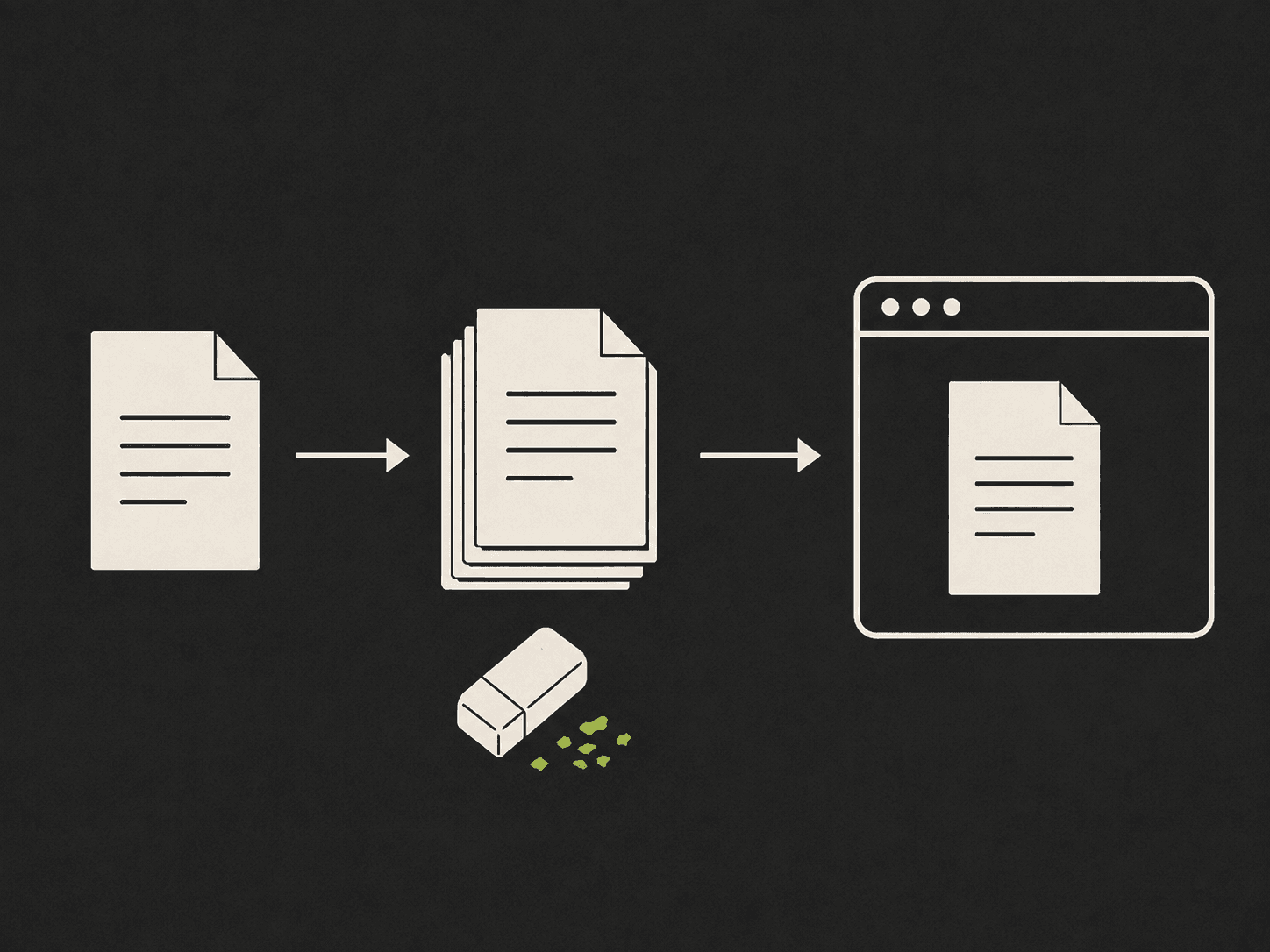
For this exercise only, make a copy of image A named cdn-check-mutable.png. Upload it, grant that single file public access, and fetch it through the custom hostname. Then replace its stored bytes with image B under the same name. Keep the two versioned files untouched.
Compare the exact mutable-file URL at the origin and CDN. Use developer tools with browser caching disabled for this diagnostic, and remember that this option does not clear the CDN. You may observe A at the edge after B is available at the origin. If both show B, that observation does not prove every edge has refreshed.
Purge only this test object through its Files menu and the Purge from CDN cache action. Recheck the same URL. Record which hostname you fetched and whether local caching was disabled. A purge test should not start by clearing the whole production bucket.
CDN purge does not recall copies already downloaded or held by browsers. For an urgent correction, publish a new object path and update the page. If confidential content was accidentally public, restrict or remove the source, purge the CDN, and treat existing copies as potentially retained. A successful purge is not proof of erasure.
Keep cache settings and CORS deliberate
Edge cache TTL describes how long an edge may reuse content. Browser caching follows the response headers it receives. Inspect actual Cache-Control headers in Network before assuming that a control-panel setting gives both layers the same lifetime. Keep the initial policy modest until you have passed the update test.
Cross-Origin Resource Sharing, or CORS, controls which browser applications may read responses across origins. It does not make public files private. If a direct image works but your application reports a CORS error, identify the request type before changing bucket settings. Fonts and JavaScript fetch requests need particular attention.
For a site that needs cross-origin reads, configure only its required origins and methods in the bucket CORS settings, then test from that actual site origin. Do not add every method and a wildcard just to silence an error. A normal image display and a script reading image bytes are different tests.
Questions before publishing
Can I use a custom domain with the Spaces CDN? Yes, with a certificate for the hostname. This guide uses DigitalOcean-managed DNS and the managed certificate option. External DNS needs the documented certificate setup. Test the default CDN address first so a custom-domain problem does not hide a file-permission problem.
Why does my file still look old after a CDN purge? The browser may still hold its own copy. Compare the origin and CDN with local caching disabled to diagnose the difference. For releases, upload a new filename and change the page reference. Purging the CDN does not recall existing downloads.
Does restricting the bucket listing protect public files? No. Listing permissions affect enumeration, while object permissions affect reads. A public object remains readable by its exact URL even with a restricted listing. Use a separate private design for sensitive files and test public objects without signing in.
Will signed download links benefit from CDN caching? DigitalOcean documents that presigned requests are not cached by the Spaces CDN. Do not use this public-file procedure for private or paid downloads. Signed access requires a separate design with authorization and expiry checks, and a different delivery-cost model.
Move one real asset and keep a rollback window
Choose one low-risk public image for the first real change. Record its old URL, new URL, page revision, and the result on desktop and mobile. Check the rendered image dimensions too. A correct network response does not prevent a page from shifting when an image has no reserved space.
Ask someone outside your own browser session to open the page, or use a separate device and network you control. Confirm the page uses the custom hostname and the expected bytes. Keep monitoring proportionate to the asset: a broken decorative image and a broken installer download have different consequences.
If the page fails, restore its previous URL or revision first. Do not delete the bucket to roll back a page edit. Retain old objects until the rollback window and any application references have been reviewed. Remove the disposable mutable test file when the exercise is complete.
Choose this setup when separating public files from application hosting solves a real deployment or billing problem. Keep your current host when it already does the job. Once the release and rollback tests pass, increase the asset set gradually and revisit the bill after a full month of delivery.
Check your result
- Expected result
- The custom hostname serves both correct images without login or certificate warnings; the preview rollback restores A.
- Stop if
- Stop on a wrong image, certificate warning, private data exposure, or an unexplained origin/CDN difference. A purge does not erase browser copies.
- Next step
- Move one approved asset, retain its old URL and file for rollback, and review measured transfer after a full month.