On this page
A short, safe path for running Stoat on a new Ubuntu Droplet. It hardens SSH, installs the official stack, and stops for you to check each real boundary.
Create the Droplet and firewall
Create a fresh Ubuntu Droplet with at least 2 vCPUs and 2 GB RAM. Add an SSH key during creation. Then create a Cloud Firewall, attach it to this Droplet, and point a hostname such as chat.example.com at its public IPv4 address. This is a Docker Compose deployment, not an App Platform app or one-container demo.
Before you create the server, confirm the current Droplet plan price and any domain cost you will carry. The server stays provisioned while the chat is idle, and optional calls add public ports and more capacity to operate. Start with text chat; add calls only after the private web path is proven.
- TCP 22 from your own public IP or VPN only.
- TCP 80 and 443 from everywhere for the web client and HTTPS certificates.
- TCP 7881 and UDP 50000 through 50100 from everywhere only if you want LiveKit calls.
- Leave MongoDB, Valkey, RabbitMQ, MinIO, and Docker without public host ports.
Run a private, always-on OpenClaw assistant
The reviewed upstream README recommends a starting point of at least 2 vCPUs and 2 GB RAM. Its stack publishes TCP 80/443 and, for calls, TCP 7881 plus UDP 50000–50100. This is upstream sizing, not a tested user capacity. Web/PWA is the baseline; the official client guide documents a desktop --force-server option while warning that most clients do not fully support self-hosting.
Attach the firewall before you connect
In the Cloud Firewall form, create the inbound rules below and choose this server under Apply to Droplets. Keep DigitalOcean's default outbound allow-all rules. The two call rules are optional. Do not add them if your community will not use calls.
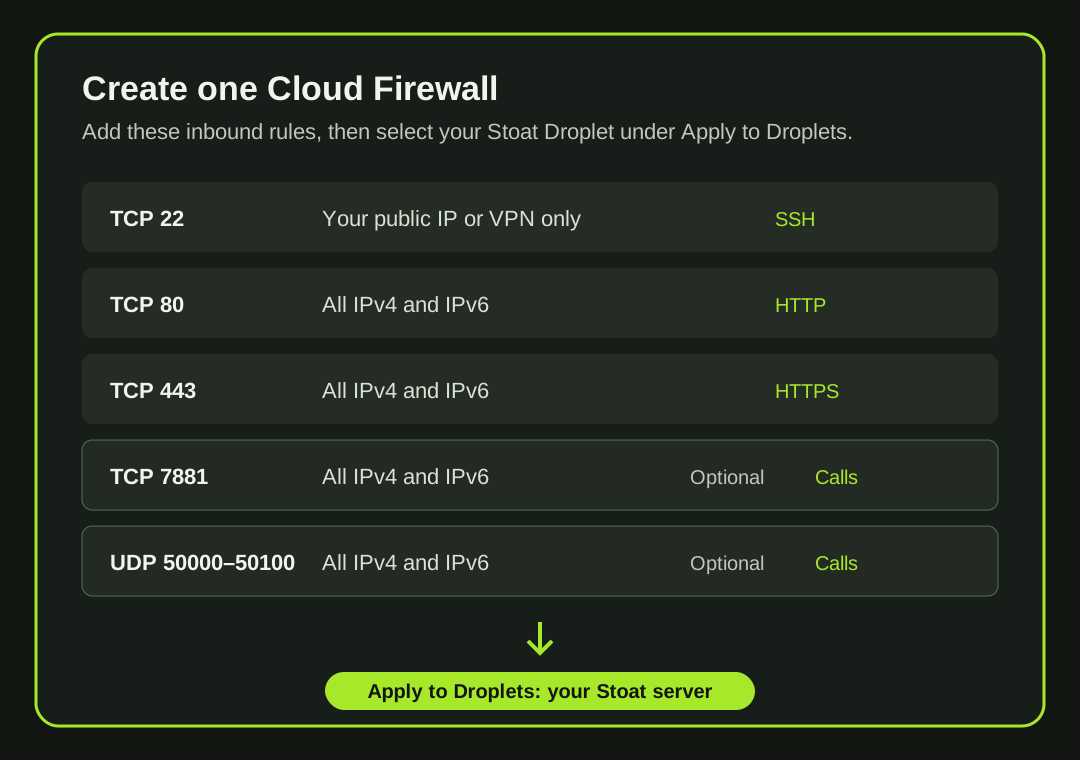
A compact rule checklist for the DigitalOcean form. The firewall has to be attached to the Droplet.
Connect, harden, then install
Use the Droplet's public IPv4 address from the DigitalOcean dashboard. The hardening script updates Ubuntu and turns off SSH password login only when it finds a root SSH key. Keep this terminal open, then confirm a second SSH login works. The preflight script changes nothing. The explicit installation block below refuses an existing /opt/stoat directory and checks out the reviewed upstream revision before opening its configuration generator.
Two separate revisions are source-reviewed on 8 October 2026: the runbook cb062ae06e67 and the upstream stack 9af5e9063a8d. The runbook installer clones upstream's default branch, so this article replaces that installer call: install Docker using the official Ubuntu instructions, then check out upstream before its generator executes. A later checkout would be too late. On first setup, retain root's existing session while verifying new SSH access. The Git pins do not freeze every container image; record resolved image digests during your rehearsal.
ssh root@YOUR_DROPLET_IP
git clone https://github.com/TylorMayfield/stoat-droplet-runbook.git
git -C stoat-droplet-runbook checkout --detach cb062ae06e67624db5e216ca2ae29acdb04dcab1
test "$(git -C stoat-droplet-runbook rev-parse HEAD)" = cb062ae06e67624db5e216ca2ae29acdb04dcab1
cd stoat-droplet-runbook
chmod 700 scripts/*.sh
sudo ./scripts/harden-host.sh --apply
cd ~/stoat-droplet-runbook
sudo ./scripts/preflight.sh chat.example.com
# Docker Engine and the Compose plugin must already be installed.
sudo bash -euo pipefail -c '
test ! -e /opt/stoat
git clone https://github.com/stoatchat/self-hosted.git /opt/stoat
git -C /opt/stoat checkout --detach 9af5e9063a8d1311477b7d2f24f5764ffe3e1cd1
test "$(git -C /opt/stoat rev-parse HEAD)" = 9af5e9063a8d1311477b7d2f24f5764ffe3e1cd1
cd /opt/stoat
chmod 700 generate_config.sh
./generate_config.sh chat.example.com
chmod 600 secrets.env
docker compose config --quiet
'
Require invitations before the first start
Open /opt/stoat/Revolt.toml in the server editor. Set invite_only = true in its api.registration section. If that section is absent, add the block below once; do not create a duplicate section. Save before starting services. HTTPS protects the connection; this setting restricts account creation.
[api.registration]
invite_only = true
Start once, then check HTTPS
The configuration generator creates secrets.env. Back it up before you start the service. Start in the foreground, read errors if any appear, then stop with Ctrl+C and run the detached command. The verification script checks the Compose configuration, running services, and public HTTPS without printing secrets. It does not prove the web app works yet.
If the verification cannot reach HTTPS, check the hostname’s DNS record and that the Cloud Firewall is attached before opening more ports. If a container is unhealthy, read only the relevant Compose service output and redact it before sharing. Do not solve either symptom by publishing a backing service or copying secrets into a ticket.
cd /opt/stoat
sudo docker compose up
# After a clean first start, press Ctrl+C.
sudo docker compose up -d
cd ~/stoat-droplet-runbook
sudo ./scripts/verify-stoat.sh chat.example.com
Test rejection, then invited registration
In a fresh browser profile, open https://chat.example.com and try registering without an invitation. It must fail. Then create an invitation with the server command below. Save the printed code in a password manager, not a ticket or screenshot. Use it to create your test account, then send one message and upload a disposable file.
Test calls from a second network if enabled. Use the web client or its PWA; self-hosted support varies among official clients. Do not invite others if registration without a code succeeds or a data service has a public port.
cd /opt/stoat
sudo docker compose exec database mongosh revolt --quiet --eval 'const invite = require("crypto").randomBytes(24).toString("hex"); db.account_invites.insertOne({_id: invite}); print(invite);'
Make an offline backup before inviting others
For the unmodified official Compose layout, persistent files live under /opt/stoat/data. Save the script below as /root/backup-stoat.sh. Run sudo bash /root/backup-stoat.sh during a maintenance window. It stops the currently running services, archives the entire installation including hidden configuration and data, and starts only those services again. Changed mount paths or external databases need their own backup.
If service discovery fails, the script exits before stopping services or creating an archive, even if the failed command returned a partial list. A successful empty list means the stack is already stopped. After a stop or archive error, the exit handler still attempts to restart the original running services and preserves the first failure status. It prints Backup: only after the archive listing and any required restart succeed. If restarting fails, check those services manually before ending maintenance.
The root-only archive contains passwords and private messages. Copy it through your approved encrypted backup process to a separate machine, then verify the archive listing includes secrets.env, Revolt.toml and data/. On an isolated spare server, restore the directory and original Compose configuration with inbound access restricted; verify the test account, message and file. Do not use the production hostname or let the spare send notifications.
#!/usr/bin/env bash
set -euo pipefail
umask 077
cd /opt/stoat
if running_services=$(docker compose ps --services --status running); then
  running=()
  if [[ -n "$running_services" ]]; then
    mapfile -t running <<< "$running_services"
  fi
else
  status=$?
  printf 'Could not list running services; no verified backup was produced.\n' >&2
  exit "$status"
fi
resume() {
  local status=$?
  local restart_status
  trap - EXIT
  if (( ${#running[@]} )); then
    if docker compose start "${running[@]}"; then
      :
    else
      restart_status=$?
      printf 'Service restart failed; check the original running services manually.\n' >&2
      if (( status == 0 )); then status=$restart_status; fi
    fi
  fi
  if (( status == 0 )); then
    printf "Backup: %s\n" "$archive"
  else
    printf 'Backup did not complete successfully; check the errors above.\n' >&2
  fi
  exit "$status"
}
trap resume EXIT
if (( ${#running[@]} )); then docker compose stop "${running[@]}"; fi
install -d -m 700 /var/backups/stoat
archive="/var/backups/stoat/stoat-$(date -u +%Y%m%dT%H%M%SZ).tar.gz"
tar -C /opt -czf "$archive" stoat
tar -tzf "$archive" > /dev/null
Record the runbook SHA, upstream SHA, image digests and date for each acceptance result: uninvited registration rejected; invited account created; known message/file recovered from an isolated offline backup; calls tested from a second network if enabled. Mark each as not run until observed. A source review and a successful HTTP response cannot supply those results.
Frequently asked questions
Can I use these scripts on an existing server?
No. The install script is for a fresh Ubuntu Droplet and refuses to replace /opt/stoat. Keep a chat service separate from an existing application server.
Which Stoat ports need to be public?
The web client needs TCP 80 and 443. LiveKit calls need TCP 7881 and UDP 50000 through 50100. Restrict SSH to your administration network and keep data services private.
What does the companion repository do?
It checks Ubuntu and DNS, installs Docker, clones Stoat's official self-hosted repository, runs its configuration generator, and verifies the first public HTTPS response. It does not create a Droplet, change a Cloud Firewall, or back up secrets for you.
Will the Stoat mobile apps connect to my server?
Usually no. Stoat says most official clients do not support self-hosted instances. Use the browser client or install it as a PWA.
What should I check before I invite other people?
Verify that uninvited registration fails, then that invited registration and a test message work. Back up configuration, secrets.env, and persistent data before inviting others.